> ## Documentation Index
> Fetch the complete documentation index at: https://developers.unize.org/llms.txt
> Use this file to discover all available pages before exploring further.

# Playground Quickstart

> Getting Started with the Playground for non-developers.

For non-developers or users looking to quickly test Unize AI, we have created a playground in our API Dashboard which you can use to make requests to Unize AI without writing any code. You will need a verified [Unize API account](https://api.unize.org/signup) and a positive balance in your account (to see how to set up your account, please refer to the [Initial Setup](initial-setup) page).

## Generating a Knowledge Graph

Here is a step-by-step guide on how to generate a knowledge graph using the Playground:

<Steps>
  <Step title="Access the Playground">
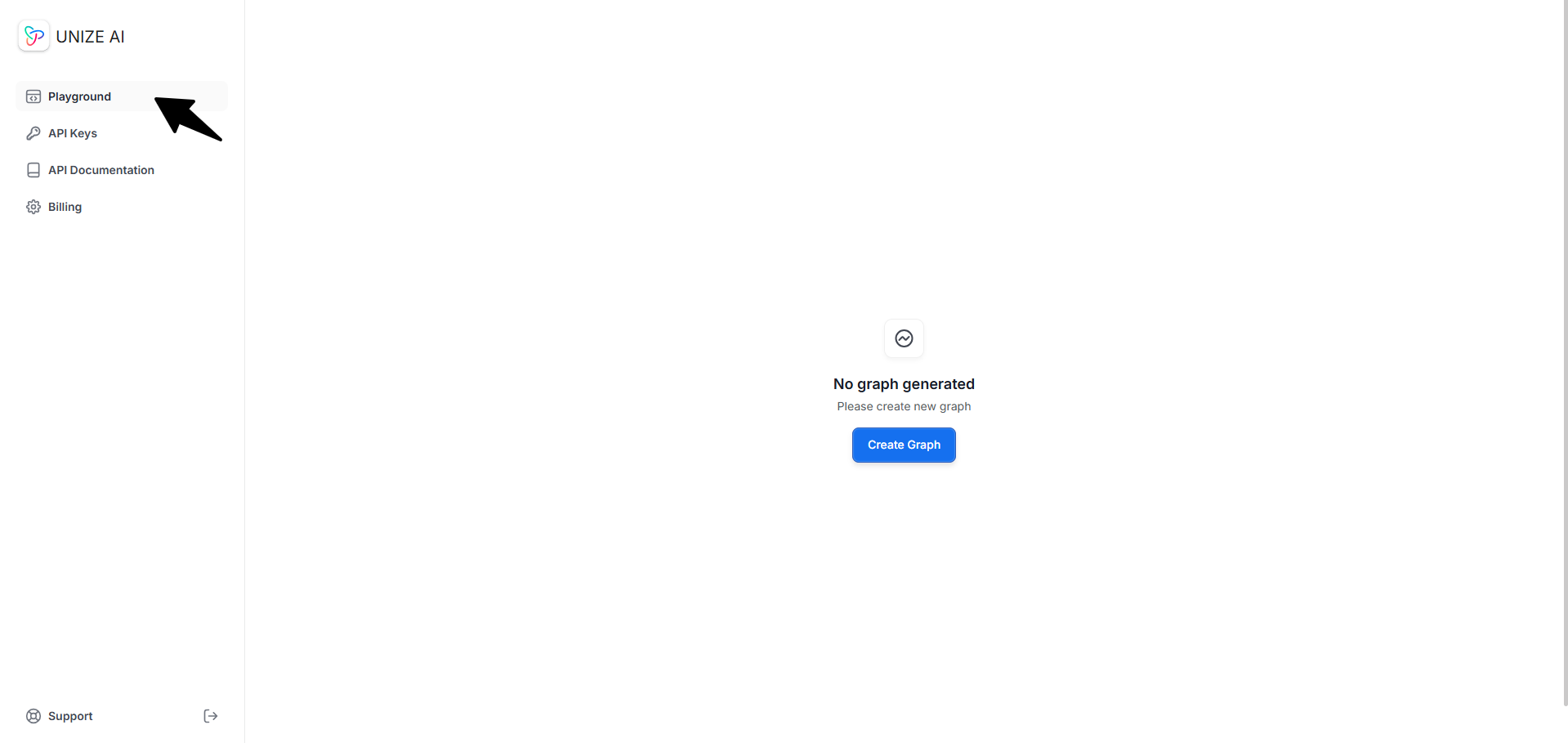
    Access the Playground by navigating to the [Playground page](https://api.unize.org/playground/graph).
    <img className="block dark:hidden" src="https://mintcdn.com/unize/WfoNS9ehX-mo3uDP/images/playground%20access.png?fit=max&auto=format&n=WfoNS9ehX-mo3uDP&q=85&s=d8c03246a0b5fbccfeffb6a2ca4e40f2" alt="Where to find the Playground from the API dashboard" width="1919" height="909" data-path="images/playground access.png" />

    <img className="hidden dark:block" src="https://mintcdn.com/unize/WfoNS9ehX-mo3uDP/images/playground%20access.png?fit=max&auto=format&n=WfoNS9ehX-mo3uDP&q=85&s=d8c03246a0b5fbccfeffb6a2ca4e40f2" alt="Where to find the Playground from the API dashboard" width="1919" height="909" data-path="images/playground access.png" />
  </Step>

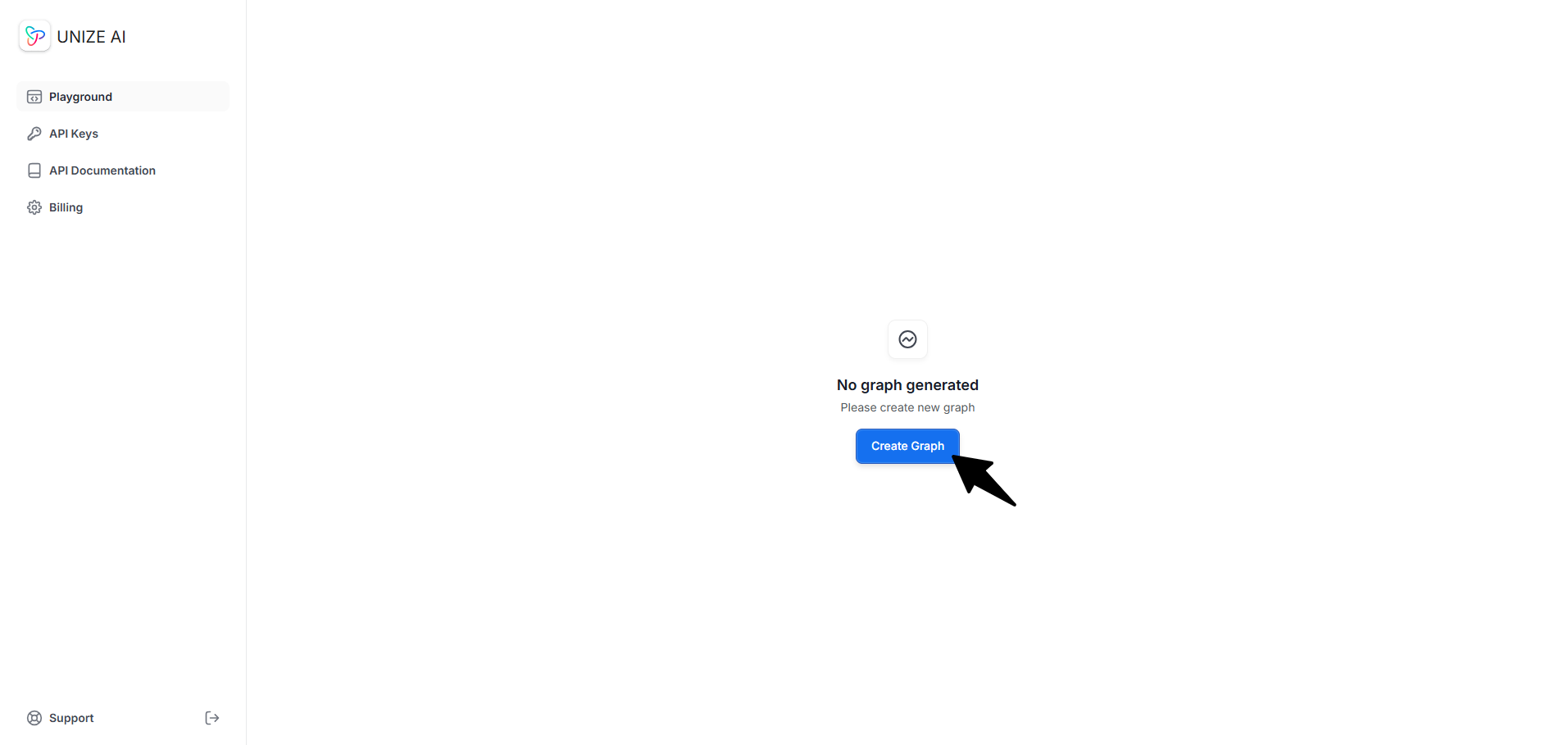
  <Step title="Click on the &#x22;Create Graph&#x22; button.">
    <img className="block dark:hidden" src="https://mintcdn.com/unize/WfoNS9ehX-mo3uDP/images/create%20graph.png?fit=max&auto=format&n=WfoNS9ehX-mo3uDP&q=85&s=4d8fe6fa4fbf68576de669f7f5c4bb2d" alt="Create graph during initial use" width="1913" height="909" data-path="images/create graph.png" />

    <img className="hidden dark:block" src="https://mintcdn.com/unize/WfoNS9ehX-mo3uDP/images/create%20graph.png?fit=max&auto=format&n=WfoNS9ehX-mo3uDP&q=85&s=4d8fe6fa4fbf68576de669f7f5c4bb2d" alt="Create graph during initial use" width="1913" height="909" data-path="images/create graph.png" />
  </Step>

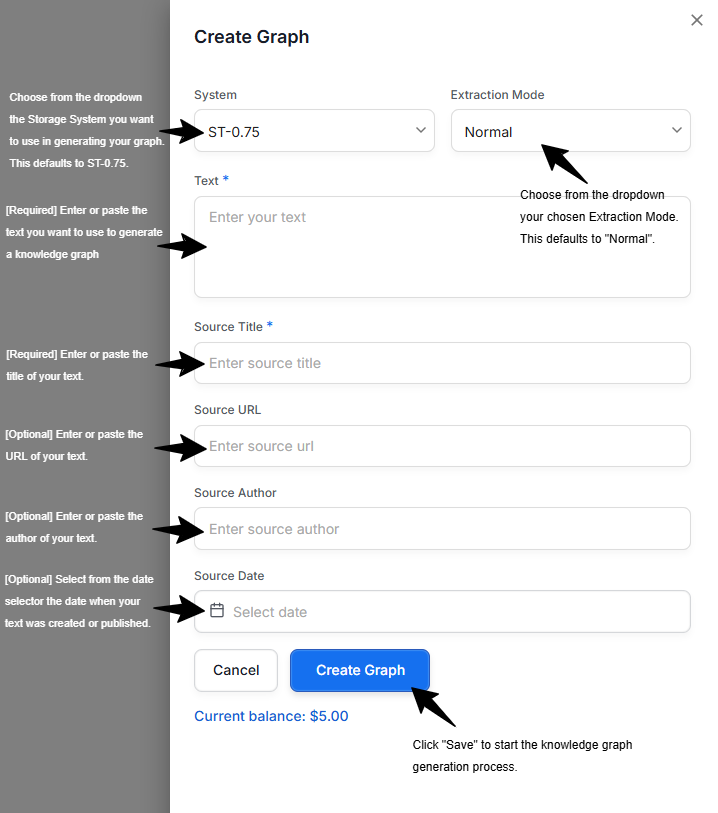
  <Step title="Input all required information listed on the Create Graph panel, then click &#x22;Save&#x22;.">
    <img className="block dark:hidden" src="https://mintcdn.com/unize/WfoNS9ehX-mo3uDP/images/cropped_generating%20a%20knowledge%20graph.png?fit=max&auto=format&n=WfoNS9ehX-mo3uDP&q=85&s=7c8a52c580986566e93d743b0bb7d38e" alt="Explanation on what are the expected information to run the API" width="718" height="813" data-path="images/cropped_generating a knowledge graph.png" />

    <img className="hidden dark:block" src="https://mintcdn.com/unize/WfoNS9ehX-mo3uDP/images/cropped_generating%20a%20knowledge%20graph.png?fit=max&auto=format&n=WfoNS9ehX-mo3uDP&q=85&s=7c8a52c580986566e93d743b0bb7d38e" alt="Explanation on what are the expected information to run the API" width="718" height="813" data-path="images/cropped_generating a knowledge graph.png" />
  </Step>
</Steps>

## Adding New Document to a Knowledge Graph

You can also add a new document to existing graphs! This allows you to continually expand a knowledge graph, and Unize AI ensures that additional information is added in a coherent manner.

<Steps>
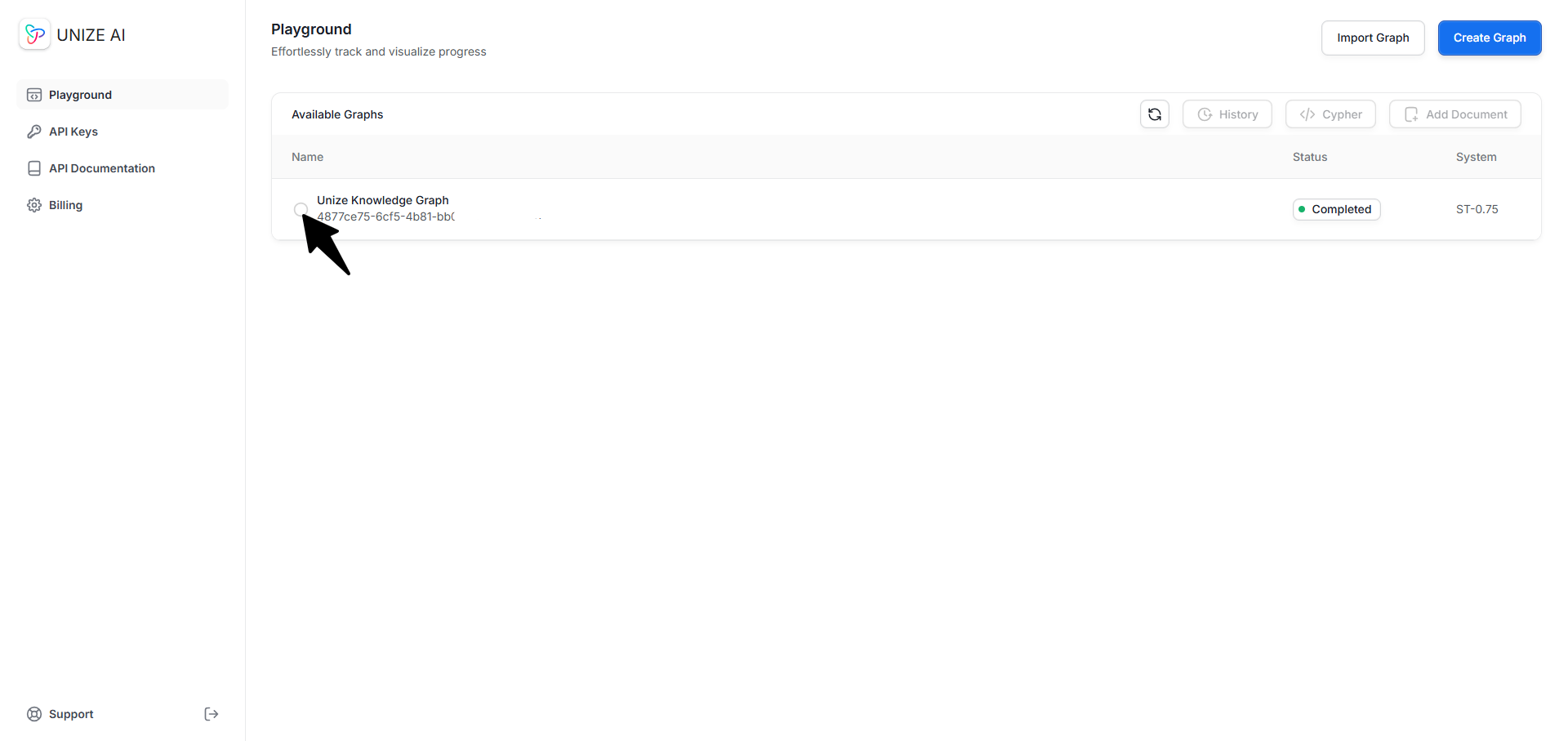
  <Step title="Click on the existing knowledge graph you want to add a new document to.">
    <img className="block dark:hidden" src="https://mintcdn.com/unize/WfoNS9ehX-mo3uDP/images/click%20existing%20graph.png?fit=max&auto=format&n=WfoNS9ehX-mo3uDP&q=85&s=449ac3194452b0966ea87c369bdd0926" alt="Selecting an existing knowledge graph to add a new document to" width="1920" height="907" data-path="images/click existing graph.png" />

    <img className="hidden dark:block" src="https://mintcdn.com/unize/WfoNS9ehX-mo3uDP/images/click%20existing%20graph.png?fit=max&auto=format&n=WfoNS9ehX-mo3uDP&q=85&s=449ac3194452b0966ea87c369bdd0926" alt="Selecting an existing knowledge graph to add a new document to" width="1920" height="907" data-path="images/click existing graph.png" />
  </Step>

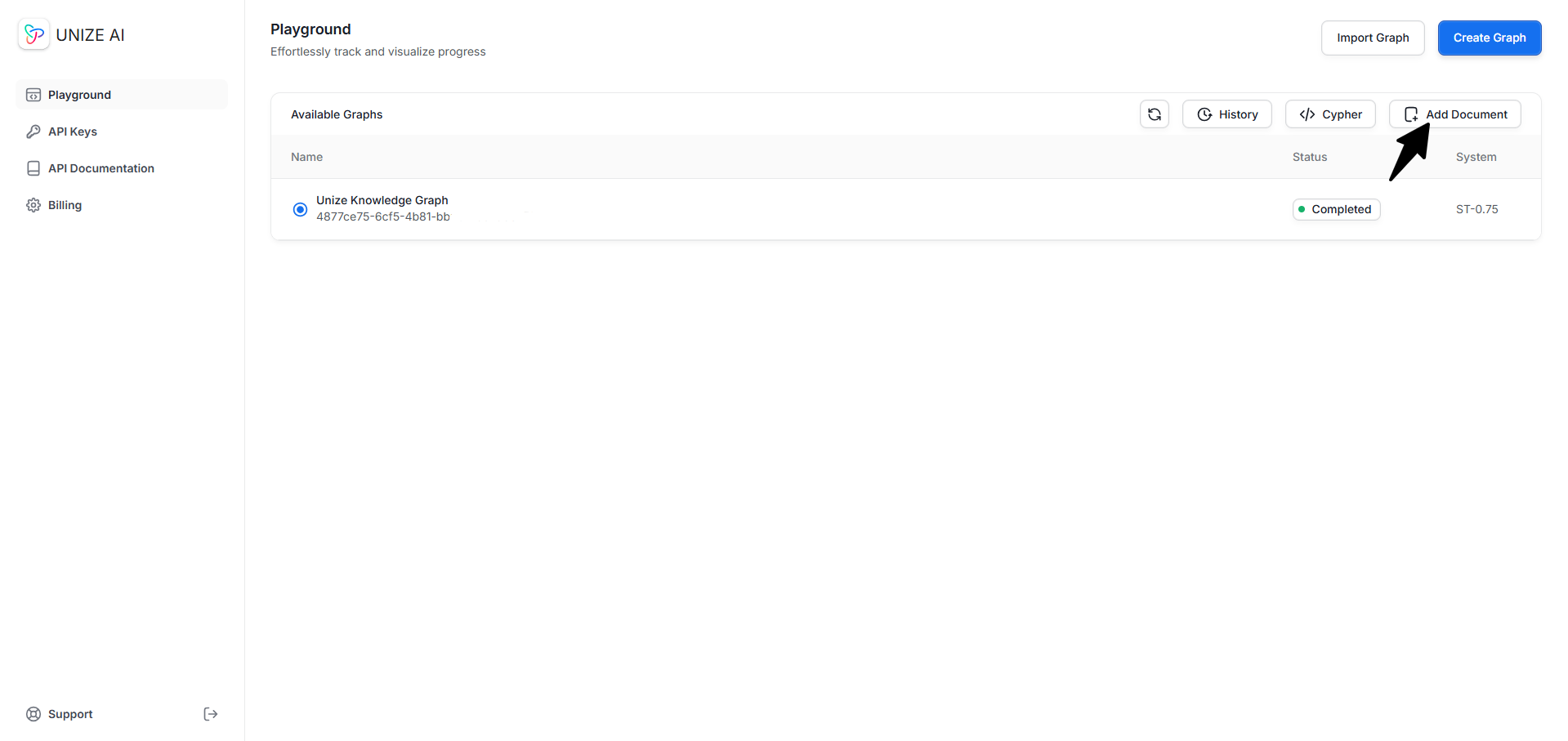
  <Step title="Click on the &#x22;Add Document&#x22; button and repeat the process of inputting required information and clicking &#x22;Save&#x22;.">
    <img className="block dark:hidden" src="https://mintcdn.com/unize/WfoNS9ehX-mo3uDP/images/add%20document.png?fit=max&auto=format&n=WfoNS9ehX-mo3uDP&q=85&s=353a808fdd62d81525a6a3910390715b" alt="Clicking on the add document button and inputting required information" width="1919" height="907" data-path="images/add document.png" />

    <img className="hidden dark:block" src="https://mintcdn.com/unize/WfoNS9ehX-mo3uDP/images/add%20document.png?fit=max&auto=format&n=WfoNS9ehX-mo3uDP&q=85&s=353a808fdd62d81525a6a3910390715b" alt="Clicking on the add document button and inputting required information" width="1919" height="907" data-path="images/add document.png" />
  </Step>
</Steps>

## Visualizing a Generated Knowledge Graph

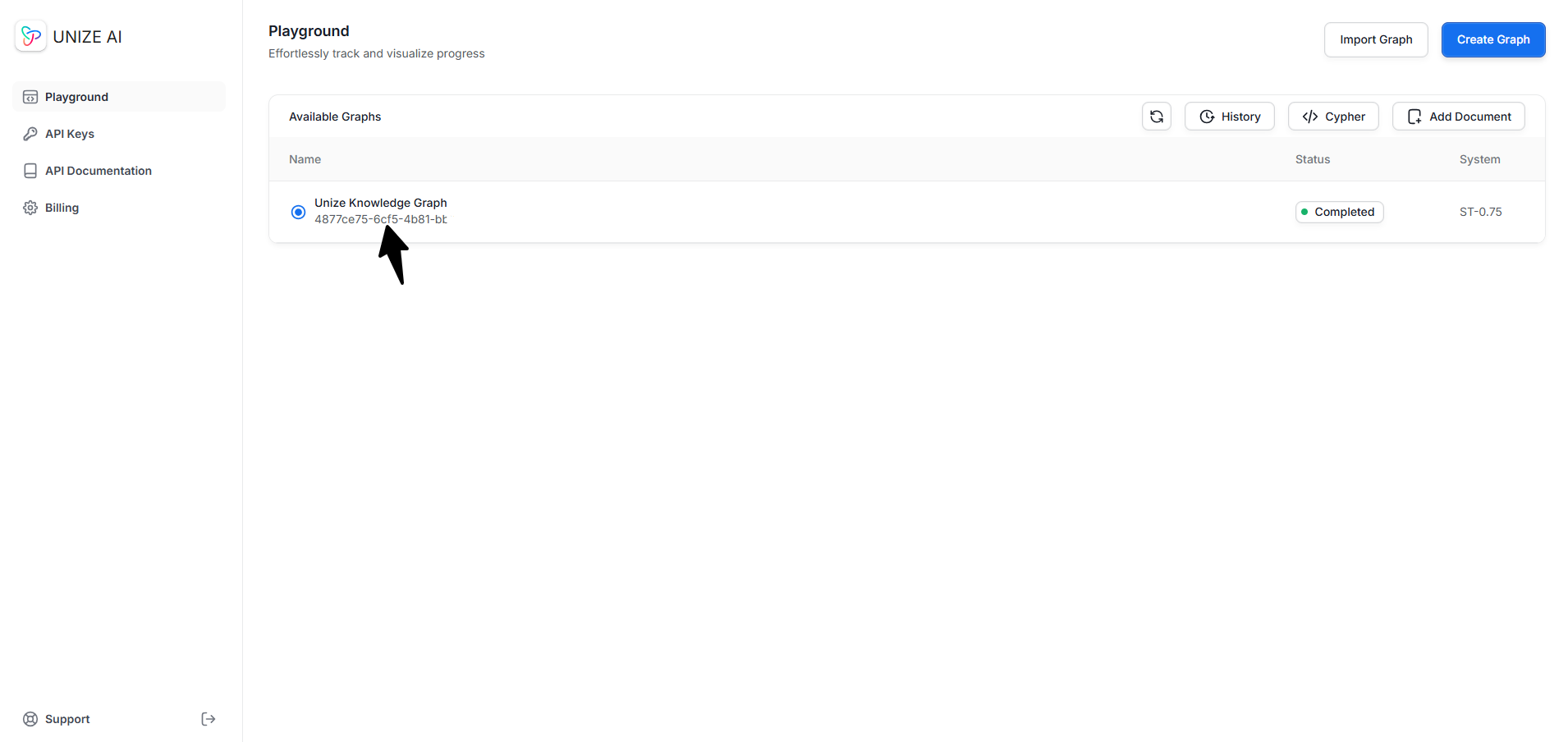
To view the generated graph from the API Dashboard, navigate to the [Playground](https://api.unize.org/playground) and click on the `graph_id` of the graph you want to visualize. You will be redirected to the graph visualization page.

<img className="block dark:hidden" src="https://mintcdn.com/unize/WfoNS9ehX-mo3uDP/images/viewing%20the%20graph.png?fit=max&auto=format&n=WfoNS9ehX-mo3uDP&q=85&s=3fdab7b64978490389281965516db5d1" alt="How to visualize a generated graph" width="1910" height="904" data-path="images/viewing the graph.png" />

<img className="hidden dark:block" src="https://mintcdn.com/unize/WfoNS9ehX-mo3uDP/images/viewing%20the%20graph.png?fit=max&auto=format&n=WfoNS9ehX-mo3uDP&q=85&s=3fdab7b64978490389281965516db5d1" alt="How to visualize a generated graph" width="1910" height="904" data-path="images/viewing the graph.png" />

The graph visualization page displays the nodes and relationships of the generated graph. You can interact with the graph by zooming in and out, dragging nodes, and clicking on nodes or relationships to view their properties.

## Asking Questions to a Knowledge Graph

As soon as you generate or import your graphs into Unize, you can begin asking questions to any of the graphs right away. Getting answers from your knowledge graph is as simple as following these steps:

<Steps>
  <Step title="Go to the Playground">
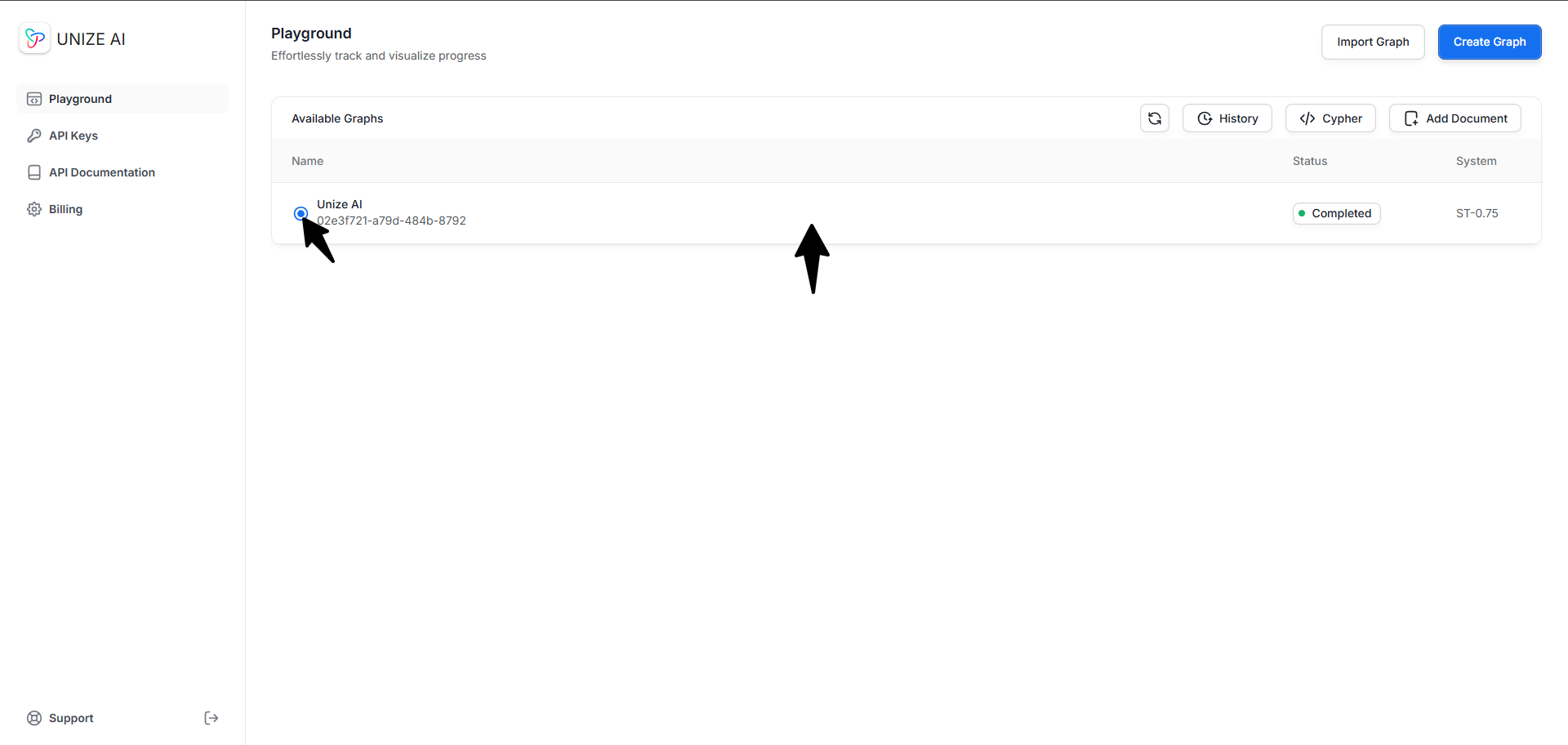
    Access the Playground by navigating to the [Playground page](https://api.unize.org/playground/graph).
    <img className="block dark:hidden" src="https://mintcdn.com/unize/WfoNS9ehX-mo3uDP/images/playground%20access.png?fit=max&auto=format&n=WfoNS9ehX-mo3uDP&q=85&s=d8c03246a0b5fbccfeffb6a2ca4e40f2" alt="Where to find the Playground from the API dashboard" width="1919" height="909" data-path="images/playground access.png" />

    <img className="hidden dark:block" src="https://mintcdn.com/unize/WfoNS9ehX-mo3uDP/images/playground%20access.png?fit=max&auto=format&n=WfoNS9ehX-mo3uDP&q=85&s=d8c03246a0b5fbccfeffb6a2ca4e40f2" alt="Where to find the Playground from the API dashboard" width="1919" height="909" data-path="images/playground access.png" />
  </Step>

  <Step title="Pick a graph to start asking questions">
    <img className="block dark:hidden" src="https://mintcdn.com/unize/WfoNS9ehX-mo3uDP/images/query%20select.png?fit=max&auto=format&n=WfoNS9ehX-mo3uDP&q=85&s=6aebec170d511c3e12901dea94e9b18b" alt="Selecting a knowledge graph to ask questions to" width="1920" height="912" data-path="images/query select.png" />

    <img className="hidden dark:block" src="https://mintcdn.com/unize/WfoNS9ehX-mo3uDP/images/query%20select.png?fit=max&auto=format&n=WfoNS9ehX-mo3uDP&q=85&s=6aebec170d511c3e12901dea94e9b18b" alt="Selecting a knowledge graph to ask questions to" width="1920" height="912" data-path="images/query select.png" />
  </Step>

  <Step title="Ask your question and click &#x22;Submit&#x22;">
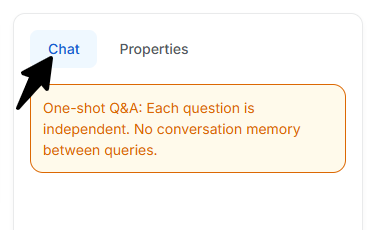
    On the right sidebar, make sure that you are on the "Chat" tab.

    <img className="block dark:hidden" src="https://mintcdn.com/unize/WfoNS9ehX-mo3uDP/images/chat%20tab.png?fit=max&auto=format&n=WfoNS9ehX-mo3uDP&q=85&s=bcd85169740dac5869f7fb6ebd89c662" alt="Ensuring you are on the chat tab" width="378" height="230" data-path="images/chat tab.png" />

    <img className="hidden dark:block" src="https://mintcdn.com/unize/WfoNS9ehX-mo3uDP/images/chat%20tab.png?fit=max&auto=format&n=WfoNS9ehX-mo3uDP&q=85&s=bcd85169740dac5869f7fb6ebd89c662" alt="Ensuring you are on the chat tab" width="378" height="230" data-path="images/chat tab.png" />

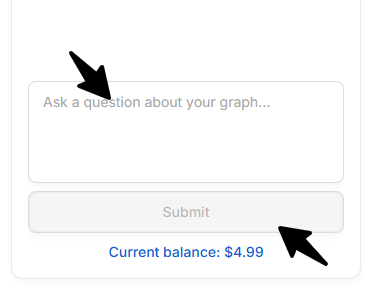
    Then on the text box at the bottom enter your question and click "Submit".
    <Note>Your answer may take a few minutes to generate. Please avoid clicking away from this page on Unize.</Note>

    <img className="block dark:hidden" src="https://mintcdn.com/unize/WfoNS9ehX-mo3uDP/images/submit%20question.png?fit=max&auto=format&n=WfoNS9ehX-mo3uDP&q=85&s=29ea02b13823457ce355f1c079bc4296" alt="Enter your question and click 'Submit'" width="376" height="295" data-path="images/submit question.png" />

    <img className="hidden dark:block" src="https://mintcdn.com/unize/WfoNS9ehX-mo3uDP/images/submit%20question.png?fit=max&auto=format&n=WfoNS9ehX-mo3uDP&q=85&s=29ea02b13823457ce355f1c079bc4296" alt="Enter your question and click 'Submit'" width="376" height="295" data-path="images/submit question.png" />

    <Info>Each question you ask is independent of one another. The AI has no memory.</Info>
  </Step>
</Steps>

## Importing a Knowledge Graph

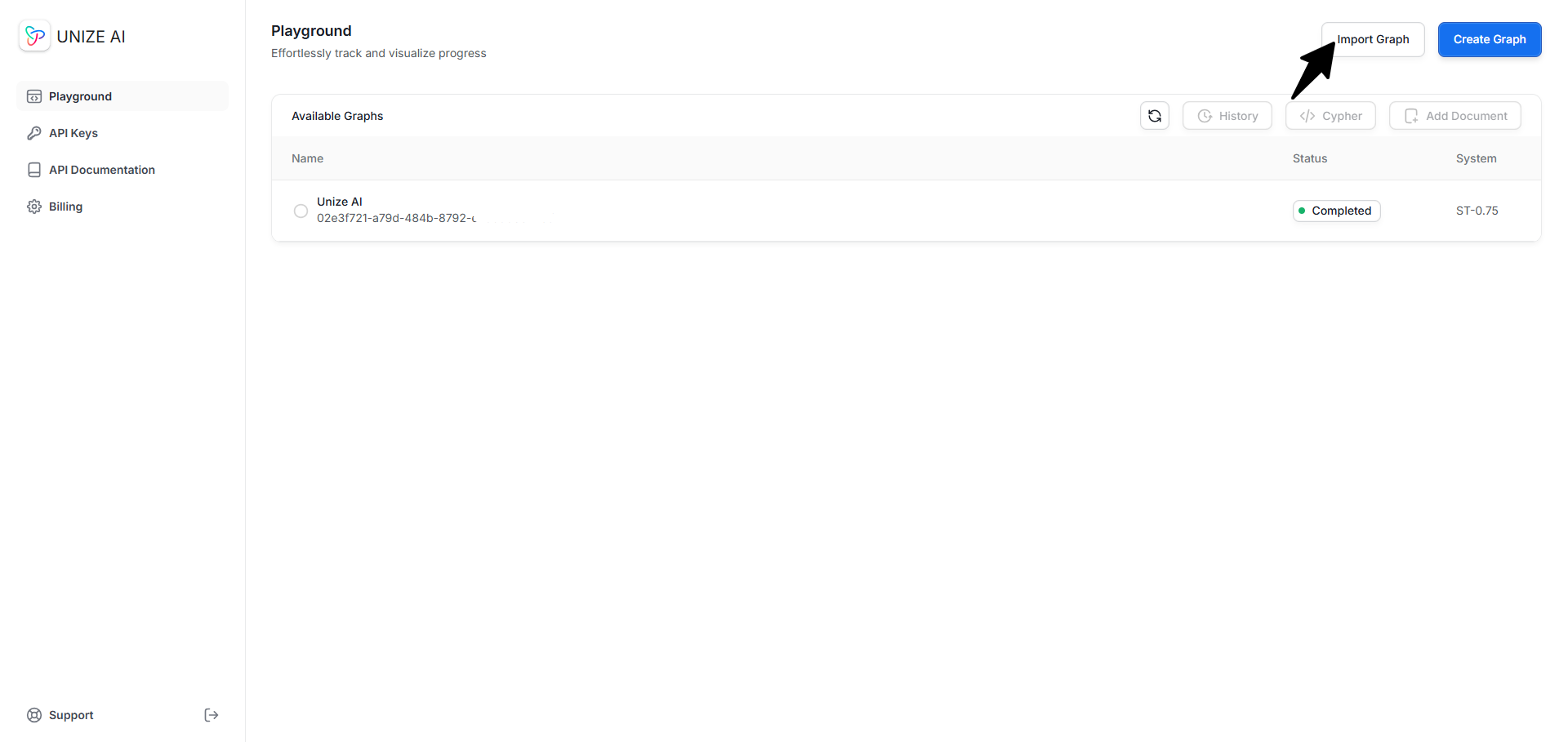
You can seamlessly bring an existing knowledge graph into Unize. Currently, we support imports via **Cypher Query Language**. To get started, just follow these steps:

<Steps>
  <Step title="Go to the Playground">
    Access the Playground by navigating to the [Playground page](https://api.unize.org/playground/graph).
    <img className="block dark:hidden" src="https://mintcdn.com/unize/WfoNS9ehX-mo3uDP/images/playground%20access.png?fit=max&auto=format&n=WfoNS9ehX-mo3uDP&q=85&s=d8c03246a0b5fbccfeffb6a2ca4e40f2" alt="Where to find the Playground from the API dashboard" width="1919" height="909" data-path="images/playground access.png" />

    <img className="hidden dark:block" src="https://mintcdn.com/unize/WfoNS9ehX-mo3uDP/images/playground%20access.png?fit=max&auto=format&n=WfoNS9ehX-mo3uDP&q=85&s=d8c03246a0b5fbccfeffb6a2ca4e40f2" alt="Where to find the Playground from the API dashboard" width="1919" height="909" data-path="images/playground access.png" />
  </Step>

  <Step title="Click on the 'Import Graph' button">
    <img className="block dark:hidden" src="https://mintcdn.com/unize/WfoNS9ehX-mo3uDP/images/importing%20graph.png?fit=max&auto=format&n=WfoNS9ehX-mo3uDP&q=85&s=f70054da8b114abb3444bb40369a21ac" alt="Clicking on the import graph button" width="1920" height="909" data-path="images/importing graph.png" />

    <img className="hidden dark:block" src="https://mintcdn.com/unize/WfoNS9ehX-mo3uDP/images/importing%20graph.png?fit=max&auto=format&n=WfoNS9ehX-mo3uDP&q=85&s=f70054da8b114abb3444bb40369a21ac" alt="Clicking on the import graph button" width="1920" height="909" data-path="images/importing graph.png" />
  </Step>

  <Step title="Import your Graph">
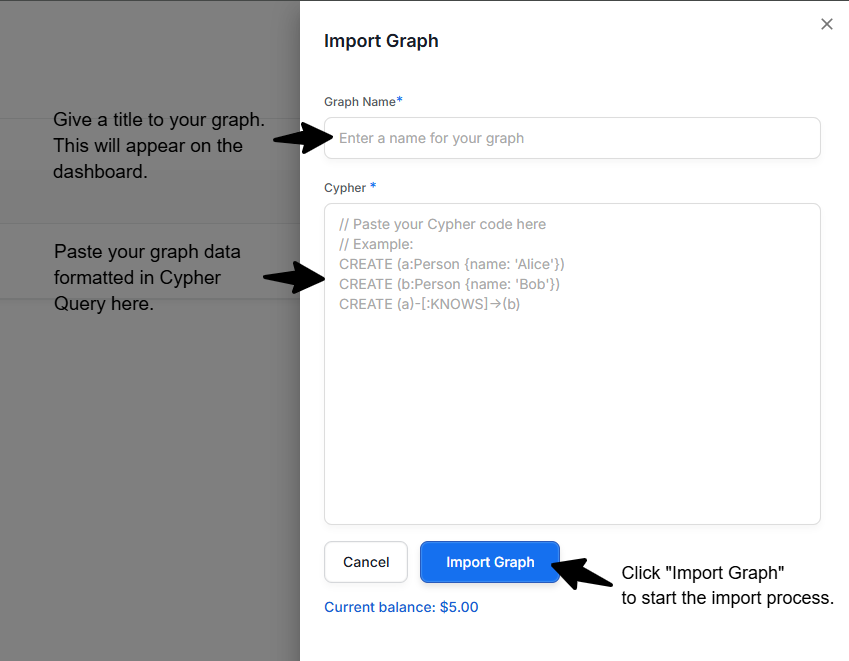
    Enter your graph in Cypher Query Language format, give it a name, and click Import Graph to bring it into Unize.
    <img className="block dark:hidden" src="https://mintcdn.com/unize/WfoNS9ehX-mo3uDP/images/import%20graph%20data.png?fit=max&auto=format&n=WfoNS9ehX-mo3uDP&q=85&s=64e516d0ccc0cfac0bfae92fa0fe295e" alt="Entering graph name and Cypher data to import a graph" width="849" height="661" data-path="images/import graph data.png" />

    <img className="hidden dark:block" src="https://mintcdn.com/unize/WfoNS9ehX-mo3uDP/images/import%20graph%20data.png?fit=max&auto=format&n=WfoNS9ehX-mo3uDP&q=85&s=64e516d0ccc0cfac0bfae92fa0fe295e" alt="Entering graph name and Cypher data to import a graph" width="849" height="661" data-path="images/import graph data.png" />
  </Step>
</Steps>

<Note>Unlike when you use Unize AI to generate a graph—where we deduplicate all nodes, relationships, and properties to ensure a cohesive, non-duplicative structure—**importing a non-Unize graph will import it as is**. We do not perform any additional processing on imported graphs.</Note>