> ## Documentation Index
> Fetch the complete documentation index at: https://developers.unize.org/llms.txt
> Use this file to discover all available pages before exploring further.
# API Quickstart
> Getting Started with the Unize API for developers.
## Base URL
All API requests are made to the following base URL:
```
https://api.unize.org
```
## Unize API Key
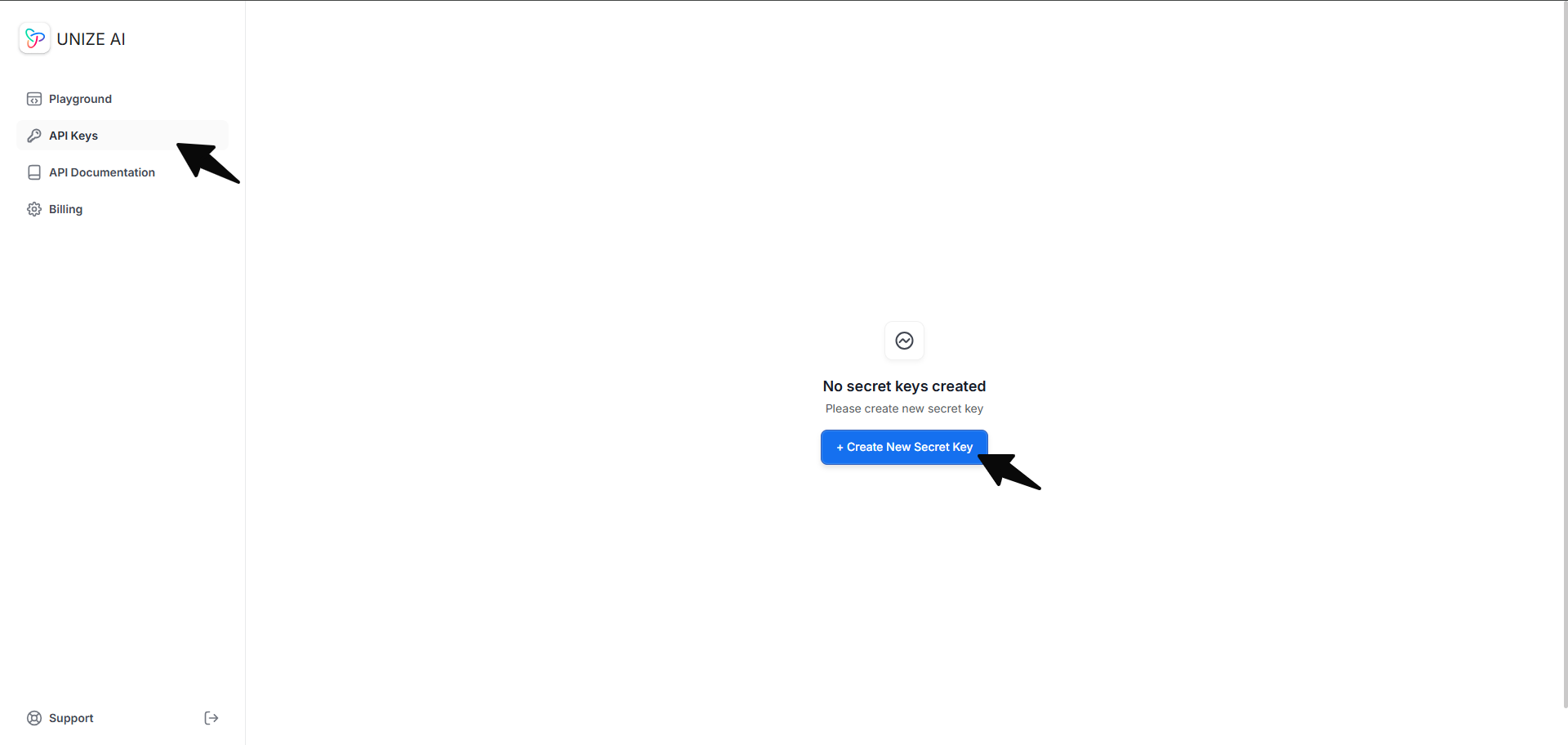
The Unize API uses **API keys** for authenticating requests. Here is a step-by-step guide on how to generate an API Key:
To begin accessing Unize AI, you have to create an API account first. You can sign up for an account [here](https://api.unize.org/signup). After signing up, you must verify your account by following the verification link in your email. You will be asked to create a password for your account.
To use the Unize API, you need an API key. You can generate an API key by navigating to the [API Keys page](https://api.unize.org/apikeys) and clicking on the "Create New Secret Key" button. You will be asked to provide a name for your API key. After providing a name, click on the "Create" button.
Keep a copy of your API key in a secure place. Do not share it with anyone!
 ## Unize Storage
### Generating a Knowledge Graph
Once you have your API key and a [positive credit balance](initial-setup), you can start generating knowledge graphs.
When generating a knowledge graph by providing input text, you need to make a `POST` request to the `/v1/storage/` endpoint. Include your API key in the request header to authenticate your call and pass to the body the following required parameters: `documents.text` and `documents.source_title`.
Here is an example of how to create a knowledge graph from text using Python:
```python theme={null}
import requests
url = "https://api.unize.org/v1/storage/"
payload = {
"system": "st-0.75",
"extraction_mode": "normal",
"documents": [
{
"text": "Joanne is an employee of Unize.",
"source_title": "Diary of Joanne"
}
]
}
headers = {
"Authorization": "enter-your-api-key-here",
"Content-Type": "application/json"
}
response = requests.post(url, json=payload, headers=headers)
print(response.json())
```
The response will contain an `graph_id` which you can use to visualize the graph or review the generated nodes and relationships.
The `graph_id` is a unique identifier for the generated graph. If you want to update an existing graph with new data, you can use the generated `graph_id` for that existing graph the next time you make a `POST` request to the `/v1/storage/` endpoint.
```json theme={null}
{
"graph_id": "3c90c3cc-0d44-4b50-8888-graph-id"
}
```
### Exporting a Knowledge Graph
Once you have the `graph_id` of the generated graph, you can export the graph by making a `GET` request to the `/v1/storage/{graph_id}/` endpoint. Include your API key in the request header to authenticate your call and pass to the path parameter the following required parameters: `graph_id`.
The `cypher_query` parameter is optional and defaults to `false`. When `false`, the API returns a JSON object with arrays of `nodes` and `relationships`. If set to `true`, the response will be a JSON object containing a Cypher Query string instead.
Check out the tabs below to see how to call the `/v1/storage/{graph_id}/` endpoint and how the responses would look like depending on the value passed to `cypher_query` parameter.
**Request**
```python theme={null}
import requests
url = "https://api.unize.org/v1/storage/enter-your-graph-id-here/"
headers = {"Authorization": "enter-your-api-key-here"}
response = requests.get(url, headers=headers)
print(response.json())
```
**Response**
The sample request above will return a `graph` object that contain the nodes and relationships of the generated graph. Here is a sample response:
```json theme={null}
{
"graph": {
"nodes": [
{
"node_label": "Person",
"node_name": "Joanne",
"node_var": "4:3c90c3cc-0d44-4b50-8888-graph-id:5585",
"node_properties": {
"snippet": "Joanne is a Unize employee.",
"graph_id": "3c90c3cc-0d44-4b50-8888-graph-id",
"name": "Tracy"
},
"snippet": null
},
{
"node_label": "Company",
"node_name": "Unize",
"node_var": "4:3c90c3cc-0d44-4b50-8888-graph-id:5586",
"node_properties": {
"snippet": "Joanne is a Unize employee.",
"graph_id": "3c90c3cc-0d44-4b50-8888-graph-id",
"name": "Unize"
},
"snippet": null
}
],
"relationships": [
{
"rel_type": "EMPLOYEE_OF",
"start_node": "4:3c90c3cc-0d44-4b50-8888-graph-id:5585",
"end_node": "4:3c90c3cc-0d44-4b50-8888-graph-id:5586",
"rel_properties": {
"graph_id": "3c90c3cc-0d44-4b50-8888-graph-id"
}
}
]
},
"latest_graph_merge_data": {
"extraction_criteria": "null",
"status": "completed",
"timestamp": "2023-11-07T05:31:56Z",
"completed_at": "2023-11-07T05:31:56Z",
"sysytem": "st_0_75",
"extraction_mode": "detailed"
}
}
```
**Request**
```python theme={null}
import requests
url = "https://api.unize.org/v1/storage/enter-your-graph-id-here/"
querystring = {"cypher_query":"true"}
headers = {"Authorization": "enter-your-api-key-here"}
response = requests.get(url, headers=headers, params=querystring)
print(response.json())
```
**Response**
The sample request above will return a `graph` object that contains the Cypher Query of the generated graph. Here is a sample response:
```json theme={null}
{
"graph": {
"cypher": "CREATE CONSTRAINT UNIQUE_IMPORT_NAME FOR (node:`UNIQUE IMPORT LABEL`) REQUIRE (node.`UNIQUE IMPORT ID`) IS UNIQUE;\nCALL db.awaitIndexes(300);\nUNWIND [{node_name:"Joanne", graph_id:"3c90c3cc-0d44-4b50-8888-graph-id", properties:{`graph_id`:"48837a53-0c2b-4691-9edd-3874b5f19af3", `UNIQUE IMPORT ID`:1}}] AS row\nMERGE (n:Person{name: row.node_name, graph_id: row.graph_id}) SET n += row.properties SET n:`UNIQUE IMPORT LABEL`;\nUNWIND [{node_name:"Unize", graph_id:"3c90c3cc-0d44-4b50-8888-graph-id", properties:{`graph_id`:"48837a53-0c2b-4691-9edd-3874b5f19af3", `UNIQUE IMPORT ID`:2}}] AS row\nMERGE (n:Organization{name: row.node_name, graph_id: row.graph_id}) SET n += row.properties SET n:`UNIQUE IMPORT LABEL`;\nUNWIND [{node_name:"Diary Of Joanne", graph_id:"3c90c3cc-0d44-4b50-8888-graph-id", properties:{`graph_id`:"48837a53-0c2b-4691-9edd-3874b5f19af3", `title`:"Diary Of Joanne", `UNIQUE IMPORT ID`:3}}] AS row\nMERGE (n:Book{name: row.node_name, graph_id: row.graph_id}) SET n += row.properties SET n:`UNIQUE IMPORT LABEL`;\nUNWIND [{node_name:"Diary Of Joanne", graph_id:"3c90c3cc-0d44-4b50-8888-graph-id", properties:{`graph_id`:"48837a53-0c2b-4691-9edd-3874b5f19af3", `title`:"Diary Of Joanne", `UNIQUE IMPORT ID`:4}}] AS row\nMERGE (n:Source{name: row.node_name, graph_id: row.graph_id}) SET n += row.properties SET n:`UNIQUE IMPORT LABEL`;\nUNWIND [{node_name:"Diary of Joanne - Chunk 0", graph_id:"3c90c3cc-0d44-4b50-8888-graph-id", properties:{`graph_id`:"48837a53-0c2b-4691-9edd-3874b5f19af3", `chunk_text`:"Joanne is an employee of Unize, as recorded in the diary titled 'Diary Of Joanne.'", `chunk_id`:0, `UNIQUE IMPORT ID`:5}}] AS row\nMERGE (n:Chunk{name: row.node_name, graph_id: row.graph_id}) SET n += row.properties SET n:`UNIQUE IMPORT LABEL`;\nUNWIND [{start: {_id:1}, end: {_id:2}, graph_id:"3c90c3cc-0d44-4b50-8888-graph-id", properties:{`graph_id`:"48837a53-0c2b-4691-9edd-3874b5f19af3"}}, {start: {_id:3}, end: {_id:1}, graph_id:"3c90c3cc-0d44-4b50-8888-graph-id", properties:{`graph_id`:"48837a53-0c2b-4691-9edd-3874b5f19af3"}}] AS row\nMATCH (start:`UNIQUE IMPORT LABEL`{`UNIQUE IMPORT ID`: row.start._id, graph_id: row.graph_id})\nMATCH (end:`UNIQUE IMPORT LABEL`{`UNIQUE IMPORT ID`: row.end._id, graph_id: row.graph_id})\nMERGE (start)-[r:EMPLOYEE_OF{graph_id: row.graph_id}]->(end) SET r += row.properties;\nUNWIND [{start: {_id:4}, end: {_id:1}, graph_id:"3c90c3cc-0d44-4b50-8888-graph-id", properties:{`graph_id`:"48837a53-0c2b-4691-9edd-3874b5f19af3", `name`:"Joanne"}}, {start: {_id:4}, end: {_id:2}, graph_id:"3c90c3cc-0d44-4b50-8888-graph-id", properties:{`graph_id`:"48837a53-0c2b-4691-9edd-3874b5f19af3", `name`:"Unize"}}, {start: {_id:4}, end: {_id:3}, graph_id:"3c90c3cc-0d44-4b50-8888-graph-id", properties:{`graph_id`:"48837a53-0c2b-4691-9edd-3874b5f19af3", `name`:"Diary Of Joanne", `title`:"Diary Of Joanne"}}] AS row\nMATCH (start:`UNIQUE IMPORT LABEL`{`UNIQUE IMPORT ID`: row.start._id, graph_id: row.graph_id})\nMATCH (end:`UNIQUE IMPORT LABEL`{`UNIQUE IMPORT ID`: row.end._id, graph_id: row.graph_id})\nMERGE (start)-[r:SOURCE_OF{graph_id: row.graph_id}]->(end) SET r += row.properties;\nUNWIND [{start: {_id:4}, end: {_id:5}, graph_id:"3c90c3cc-0d44-4b50-8888-graph-id", properties:{`graph_id`:"48837a53-0c2b-4691-9edd-3874b5f19af3"}}] AS row\nMATCH (start:`UNIQUE IMPORT LABEL`{`UNIQUE IMPORT ID`: row.start._id, graph_id: row.graph_id})\nMATCH (end:`UNIQUE IMPORT LABEL`{`UNIQUE IMPORT ID`: row.end._id, graph_id: row.graph_id})\nMERGE (start)-[r:HAS_CHUNK{graph_id: row.graph_id}]->(end) SET r += row.properties;\nUNWIND [{start: {_id:4}, end: {_id:5}, graph_id:"3c90c3cc-0d44-4b50-8888-graph-id", properties:{`graph_id`:"48837a53-0c2b-4691-9edd-3874b5f19af3"}}] AS row\nMATCH (start:`UNIQUE IMPORT LABEL`{`UNIQUE IMPORT ID`: row.start._id, graph_id: row.graph_id})\nMATCH (end:`UNIQUE IMPORT LABEL`{`UNIQUE IMPORT ID`: row.end._id, graph_id: row.graph_id})\nMERGE (start)-[r:FIRST_CHUNK{graph_id: row.graph_id}]->(end) SET r += row.properties;\nUNWIND [{start: {_id:4}, end: {_id:5}, graph_id:"3c90c3cc-0d44-4b50-8888-graph-id", properties:{`graph_id`:"48837a53-0c2b-4691-9edd-3874b5f19af3"}}] AS row\nMATCH (start:`UNIQUE IMPORT LABEL`{`UNIQUE IMPORT ID`: row.start._id, graph_id: row.graph_id})\nMATCH (end:`UNIQUE IMPORT LABEL`{`UNIQUE IMPORT ID`: row.end._id, graph_id: row.graph_id})\nMERGE (start)-[r:LAST_CHUNK{graph_id: row.graph_id}]->(end) SET r += row.properties;\nUNWIND [{start: {_id:5}, end: {_id:1}, graph_id:"3c90c3cc-0d44-4b50-8888-graph-id", properties:{`graph_id`:"48837a53-0c2b-4691-9edd-3874b5f19af3"}}, {start: {_id:5}, end: {_id:2}, graph_id:"3c90c3cc-0d44-4b50-8888-graph-id", properties:{`graph_id`:"48837a53-0c2b-4691-9edd-3874b5f19af3"}}, {start: {_id:5}, end: {_id:3}, graph_id:"3c90c3cc-0d44-4b50-8888-graph-id", properties:{`graph_id`:"48837a53-0c2b-4691-9edd-3874b5f19af3"}}] AS row\nMATCH (start:`UNIQUE IMPORT LABEL`{`UNIQUE IMPORT ID`: row.start._id, graph_id: row.graph_id})\nMATCH (end:`UNIQUE IMPORT LABEL`{`UNIQUE IMPORT ID`: row.end._id, graph_id: row.graph_id})\nMERGE (start)-[r:HAS_ENTITY{graph_id: row.graph_id}]->(end) SET r += row.properties;\nMATCH (n:`UNIQUE IMPORT LABEL`) WITH n LIMIT 20000 REMOVE n:`UNIQUE IMPORT LABEL` REMOVE n.`UNIQUE IMPORT ID`;\nDROP CONSTRAINT UNIQUE_IMPORT_NAME;"
},
"latest_graph_merge_data": {
"extraction_criteria": "null",
"status": "completed",
"timestamp": "2023-11-07T05:31:56Z",
"completed_at": "2023-11-07T05:31:56Z",
"sysytem": "st_0_75",
"extraction_mode": "detailed"
}
}
```
## Unize Retrieval
### Asking Questions to a Knowledge Graph
To ask a question to a knowledge graph, you need to make a `POST` request to the `/v1/storage/{graph_id}/retrieval/` endpoint. To successfuly ask a question you need to follow these three requirements:
1. Include your API key in the request header to authenticate your call;
2. Pass the `graph_id` to the path parameter; and
3. Pass to the request body the following required parameters: `question`.
Here is an example of how to ask a question using Python:
```python theme={null}
import requests
url = "https://api.unize.org/v1/storage/enter-your-graph-id-here/retrieval/"
payload = {
"system": "rt-0.5",
"question": "Count the number of people"
}
headers = {
"Authorization": "enter-your-api-key-here",
"Content-Type": "application/json"
}
response = requests.post(url, json=payload, headers=headers)
print(response.json())
```
The response will contain a `retrieval_id` which you can use to check the status of the request and fetch the answer to your question once completed.
```json theme={null}
{
"retrieval_id":"07e382e9-7407-43fd-8888-retrieval-id"
}
```
### Fetching Answers to Your Questions
Once you have a `retrieval_id`, you can fetch the answer by making a `GET` request to the `/v1/storage/{graph_id}/retrieval/{retrieval_id}/` endpoint. Include your `API key` in the request header to authenticate your call and pass to the path parameters the following: `graph_id` and `retrieval_id`.
Here is an example of how to fetch an answer using Python:
```python theme={null}
import requests
url = "https://api.unize.org/v1/storage/enter-your-graph-id-here/retrieval/enter-your-retrieval-id-here/"
headers = {"Authorization": "enter-your-api-key-here"} # Replace with your API key
response = requests.get(url, headers=headers)
print(response.json())
```
The response will contain the status of your request and the answer to your question once it's completed. Here is a sample response:
```json theme={null}
{
"retrieval_id":"07e382e9-7407-43fd-8888-retrieval-id",
"question":"Count the number of people",
"answer":"There is 1 person.",
"status":"success",
"timestamp":"2025-08-27T08:04:32.515801Z",
"completed_at":"2025-08-27T08:05:01.097963Z",
"system":"rt-0.5"
}
```
## Importing a Knowledge Graph
You can also import an existing knowledge graph into Unize by making a `POST` request to the `v1/storage/import/` endpoint. Include your API key in the request header to authenticate your call and pass to the body the following required parameters: `graph_name` and `cypher`.
You can also pass an `graph_id` to the body if you want to assign a specific ID to the imported graph; otherwise, one will be auto-generated for you. If the `graph_id` already exists, the imported graph will be merged with the existing graph.
If you are passing a `graph_id`, make sure it is a valid **UUID4** string. Otherwise, the request will fail.
Here is an example of how to import a knowledge graph using Python:
```python theme={null}
import requests
url = "https://api.unize.org/v1/storage/import/"
payload = {
"cypher": "CREATE (a:Person {firstName: \"Alice\"}) CREATE (b:Person {firstName: \"Jason\"}) CREATE (a)-[:FRIENDS]->(b)",
"graph_name": "Sample Imported Graph"
}
headers = {
"Authorization": "enter-your-api-key-here", # Replace with your API key
"Content-Type": "application/json"
}
response = requests.post(url, json=payload, headers=headers)
print(response.json())
```
The response will contain the `graph_id` of the imported graph.
```json theme={null}
{
"graph_id": "3c90c3cc-0d44-4b50-8888-sample-graph-id"
}
```
Unlike when you use Unize AI to generate a graph—where we deduplicate all nodes, relationships, and properties to ensure a cohesive, non-duplicative structure—**importing a non-Unize graph will import it as is**. We do not perform any additional processing on imported graphs.
## Unize Storage
### Generating a Knowledge Graph
Once you have your API key and a [positive credit balance](initial-setup), you can start generating knowledge graphs.
When generating a knowledge graph by providing input text, you need to make a `POST` request to the `/v1/storage/` endpoint. Include your API key in the request header to authenticate your call and pass to the body the following required parameters: `documents.text` and `documents.source_title`.
Here is an example of how to create a knowledge graph from text using Python:
```python theme={null}
import requests
url = "https://api.unize.org/v1/storage/"
payload = {
"system": "st-0.75",
"extraction_mode": "normal",
"documents": [
{
"text": "Joanne is an employee of Unize.",
"source_title": "Diary of Joanne"
}
]
}
headers = {
"Authorization": "enter-your-api-key-here",
"Content-Type": "application/json"
}
response = requests.post(url, json=payload, headers=headers)
print(response.json())
```
The response will contain an `graph_id` which you can use to visualize the graph or review the generated nodes and relationships.
The `graph_id` is a unique identifier for the generated graph. If you want to update an existing graph with new data, you can use the generated `graph_id` for that existing graph the next time you make a `POST` request to the `/v1/storage/` endpoint.
```json theme={null}
{
"graph_id": "3c90c3cc-0d44-4b50-8888-graph-id"
}
```
### Exporting a Knowledge Graph
Once you have the `graph_id` of the generated graph, you can export the graph by making a `GET` request to the `/v1/storage/{graph_id}/` endpoint. Include your API key in the request header to authenticate your call and pass to the path parameter the following required parameters: `graph_id`.
The `cypher_query` parameter is optional and defaults to `false`. When `false`, the API returns a JSON object with arrays of `nodes` and `relationships`. If set to `true`, the response will be a JSON object containing a Cypher Query string instead.
Check out the tabs below to see how to call the `/v1/storage/{graph_id}/` endpoint and how the responses would look like depending on the value passed to `cypher_query` parameter.
**Request**
```python theme={null}
import requests
url = "https://api.unize.org/v1/storage/enter-your-graph-id-here/"
headers = {"Authorization": "enter-your-api-key-here"}
response = requests.get(url, headers=headers)
print(response.json())
```
**Response**
The sample request above will return a `graph` object that contain the nodes and relationships of the generated graph. Here is a sample response:
```json theme={null}
{
"graph": {
"nodes": [
{
"node_label": "Person",
"node_name": "Joanne",
"node_var": "4:3c90c3cc-0d44-4b50-8888-graph-id:5585",
"node_properties": {
"snippet": "Joanne is a Unize employee.",
"graph_id": "3c90c3cc-0d44-4b50-8888-graph-id",
"name": "Tracy"
},
"snippet": null
},
{
"node_label": "Company",
"node_name": "Unize",
"node_var": "4:3c90c3cc-0d44-4b50-8888-graph-id:5586",
"node_properties": {
"snippet": "Joanne is a Unize employee.",
"graph_id": "3c90c3cc-0d44-4b50-8888-graph-id",
"name": "Unize"
},
"snippet": null
}
],
"relationships": [
{
"rel_type": "EMPLOYEE_OF",
"start_node": "4:3c90c3cc-0d44-4b50-8888-graph-id:5585",
"end_node": "4:3c90c3cc-0d44-4b50-8888-graph-id:5586",
"rel_properties": {
"graph_id": "3c90c3cc-0d44-4b50-8888-graph-id"
}
}
]
},
"latest_graph_merge_data": {
"extraction_criteria": "null",
"status": "completed",
"timestamp": "2023-11-07T05:31:56Z",
"completed_at": "2023-11-07T05:31:56Z",
"sysytem": "st_0_75",
"extraction_mode": "detailed"
}
}
```
**Request**
```python theme={null}
import requests
url = "https://api.unize.org/v1/storage/enter-your-graph-id-here/"
querystring = {"cypher_query":"true"}
headers = {"Authorization": "enter-your-api-key-here"}
response = requests.get(url, headers=headers, params=querystring)
print(response.json())
```
**Response**
The sample request above will return a `graph` object that contains the Cypher Query of the generated graph. Here is a sample response:
```json theme={null}
{
"graph": {
"cypher": "CREATE CONSTRAINT UNIQUE_IMPORT_NAME FOR (node:`UNIQUE IMPORT LABEL`) REQUIRE (node.`UNIQUE IMPORT ID`) IS UNIQUE;\nCALL db.awaitIndexes(300);\nUNWIND [{node_name:"Joanne", graph_id:"3c90c3cc-0d44-4b50-8888-graph-id", properties:{`graph_id`:"48837a53-0c2b-4691-9edd-3874b5f19af3", `UNIQUE IMPORT ID`:1}}] AS row\nMERGE (n:Person{name: row.node_name, graph_id: row.graph_id}) SET n += row.properties SET n:`UNIQUE IMPORT LABEL`;\nUNWIND [{node_name:"Unize", graph_id:"3c90c3cc-0d44-4b50-8888-graph-id", properties:{`graph_id`:"48837a53-0c2b-4691-9edd-3874b5f19af3", `UNIQUE IMPORT ID`:2}}] AS row\nMERGE (n:Organization{name: row.node_name, graph_id: row.graph_id}) SET n += row.properties SET n:`UNIQUE IMPORT LABEL`;\nUNWIND [{node_name:"Diary Of Joanne", graph_id:"3c90c3cc-0d44-4b50-8888-graph-id", properties:{`graph_id`:"48837a53-0c2b-4691-9edd-3874b5f19af3", `title`:"Diary Of Joanne", `UNIQUE IMPORT ID`:3}}] AS row\nMERGE (n:Book{name: row.node_name, graph_id: row.graph_id}) SET n += row.properties SET n:`UNIQUE IMPORT LABEL`;\nUNWIND [{node_name:"Diary Of Joanne", graph_id:"3c90c3cc-0d44-4b50-8888-graph-id", properties:{`graph_id`:"48837a53-0c2b-4691-9edd-3874b5f19af3", `title`:"Diary Of Joanne", `UNIQUE IMPORT ID`:4}}] AS row\nMERGE (n:Source{name: row.node_name, graph_id: row.graph_id}) SET n += row.properties SET n:`UNIQUE IMPORT LABEL`;\nUNWIND [{node_name:"Diary of Joanne - Chunk 0", graph_id:"3c90c3cc-0d44-4b50-8888-graph-id", properties:{`graph_id`:"48837a53-0c2b-4691-9edd-3874b5f19af3", `chunk_text`:"Joanne is an employee of Unize, as recorded in the diary titled 'Diary Of Joanne.'", `chunk_id`:0, `UNIQUE IMPORT ID`:5}}] AS row\nMERGE (n:Chunk{name: row.node_name, graph_id: row.graph_id}) SET n += row.properties SET n:`UNIQUE IMPORT LABEL`;\nUNWIND [{start: {_id:1}, end: {_id:2}, graph_id:"3c90c3cc-0d44-4b50-8888-graph-id", properties:{`graph_id`:"48837a53-0c2b-4691-9edd-3874b5f19af3"}}, {start: {_id:3}, end: {_id:1}, graph_id:"3c90c3cc-0d44-4b50-8888-graph-id", properties:{`graph_id`:"48837a53-0c2b-4691-9edd-3874b5f19af3"}}] AS row\nMATCH (start:`UNIQUE IMPORT LABEL`{`UNIQUE IMPORT ID`: row.start._id, graph_id: row.graph_id})\nMATCH (end:`UNIQUE IMPORT LABEL`{`UNIQUE IMPORT ID`: row.end._id, graph_id: row.graph_id})\nMERGE (start)-[r:EMPLOYEE_OF{graph_id: row.graph_id}]->(end) SET r += row.properties;\nUNWIND [{start: {_id:4}, end: {_id:1}, graph_id:"3c90c3cc-0d44-4b50-8888-graph-id", properties:{`graph_id`:"48837a53-0c2b-4691-9edd-3874b5f19af3", `name`:"Joanne"}}, {start: {_id:4}, end: {_id:2}, graph_id:"3c90c3cc-0d44-4b50-8888-graph-id", properties:{`graph_id`:"48837a53-0c2b-4691-9edd-3874b5f19af3", `name`:"Unize"}}, {start: {_id:4}, end: {_id:3}, graph_id:"3c90c3cc-0d44-4b50-8888-graph-id", properties:{`graph_id`:"48837a53-0c2b-4691-9edd-3874b5f19af3", `name`:"Diary Of Joanne", `title`:"Diary Of Joanne"}}] AS row\nMATCH (start:`UNIQUE IMPORT LABEL`{`UNIQUE IMPORT ID`: row.start._id, graph_id: row.graph_id})\nMATCH (end:`UNIQUE IMPORT LABEL`{`UNIQUE IMPORT ID`: row.end._id, graph_id: row.graph_id})\nMERGE (start)-[r:SOURCE_OF{graph_id: row.graph_id}]->(end) SET r += row.properties;\nUNWIND [{start: {_id:4}, end: {_id:5}, graph_id:"3c90c3cc-0d44-4b50-8888-graph-id", properties:{`graph_id`:"48837a53-0c2b-4691-9edd-3874b5f19af3"}}] AS row\nMATCH (start:`UNIQUE IMPORT LABEL`{`UNIQUE IMPORT ID`: row.start._id, graph_id: row.graph_id})\nMATCH (end:`UNIQUE IMPORT LABEL`{`UNIQUE IMPORT ID`: row.end._id, graph_id: row.graph_id})\nMERGE (start)-[r:HAS_CHUNK{graph_id: row.graph_id}]->(end) SET r += row.properties;\nUNWIND [{start: {_id:4}, end: {_id:5}, graph_id:"3c90c3cc-0d44-4b50-8888-graph-id", properties:{`graph_id`:"48837a53-0c2b-4691-9edd-3874b5f19af3"}}] AS row\nMATCH (start:`UNIQUE IMPORT LABEL`{`UNIQUE IMPORT ID`: row.start._id, graph_id: row.graph_id})\nMATCH (end:`UNIQUE IMPORT LABEL`{`UNIQUE IMPORT ID`: row.end._id, graph_id: row.graph_id})\nMERGE (start)-[r:FIRST_CHUNK{graph_id: row.graph_id}]->(end) SET r += row.properties;\nUNWIND [{start: {_id:4}, end: {_id:5}, graph_id:"3c90c3cc-0d44-4b50-8888-graph-id", properties:{`graph_id`:"48837a53-0c2b-4691-9edd-3874b5f19af3"}}] AS row\nMATCH (start:`UNIQUE IMPORT LABEL`{`UNIQUE IMPORT ID`: row.start._id, graph_id: row.graph_id})\nMATCH (end:`UNIQUE IMPORT LABEL`{`UNIQUE IMPORT ID`: row.end._id, graph_id: row.graph_id})\nMERGE (start)-[r:LAST_CHUNK{graph_id: row.graph_id}]->(end) SET r += row.properties;\nUNWIND [{start: {_id:5}, end: {_id:1}, graph_id:"3c90c3cc-0d44-4b50-8888-graph-id", properties:{`graph_id`:"48837a53-0c2b-4691-9edd-3874b5f19af3"}}, {start: {_id:5}, end: {_id:2}, graph_id:"3c90c3cc-0d44-4b50-8888-graph-id", properties:{`graph_id`:"48837a53-0c2b-4691-9edd-3874b5f19af3"}}, {start: {_id:5}, end: {_id:3}, graph_id:"3c90c3cc-0d44-4b50-8888-graph-id", properties:{`graph_id`:"48837a53-0c2b-4691-9edd-3874b5f19af3"}}] AS row\nMATCH (start:`UNIQUE IMPORT LABEL`{`UNIQUE IMPORT ID`: row.start._id, graph_id: row.graph_id})\nMATCH (end:`UNIQUE IMPORT LABEL`{`UNIQUE IMPORT ID`: row.end._id, graph_id: row.graph_id})\nMERGE (start)-[r:HAS_ENTITY{graph_id: row.graph_id}]->(end) SET r += row.properties;\nMATCH (n:`UNIQUE IMPORT LABEL`) WITH n LIMIT 20000 REMOVE n:`UNIQUE IMPORT LABEL` REMOVE n.`UNIQUE IMPORT ID`;\nDROP CONSTRAINT UNIQUE_IMPORT_NAME;"
},
"latest_graph_merge_data": {
"extraction_criteria": "null",
"status": "completed",
"timestamp": "2023-11-07T05:31:56Z",
"completed_at": "2023-11-07T05:31:56Z",
"sysytem": "st_0_75",
"extraction_mode": "detailed"
}
}
```
## Unize Retrieval
### Asking Questions to a Knowledge Graph
To ask a question to a knowledge graph, you need to make a `POST` request to the `/v1/storage/{graph_id}/retrieval/` endpoint. To successfuly ask a question you need to follow these three requirements:
1. Include your API key in the request header to authenticate your call;
2. Pass the `graph_id` to the path parameter; and
3. Pass to the request body the following required parameters: `question`.
Here is an example of how to ask a question using Python:
```python theme={null}
import requests
url = "https://api.unize.org/v1/storage/enter-your-graph-id-here/retrieval/"
payload = {
"system": "rt-0.5",
"question": "Count the number of people"
}
headers = {
"Authorization": "enter-your-api-key-here",
"Content-Type": "application/json"
}
response = requests.post(url, json=payload, headers=headers)
print(response.json())
```
The response will contain a `retrieval_id` which you can use to check the status of the request and fetch the answer to your question once completed.
```json theme={null}
{
"retrieval_id":"07e382e9-7407-43fd-8888-retrieval-id"
}
```
### Fetching Answers to Your Questions
Once you have a `retrieval_id`, you can fetch the answer by making a `GET` request to the `/v1/storage/{graph_id}/retrieval/{retrieval_id}/` endpoint. Include your `API key` in the request header to authenticate your call and pass to the path parameters the following: `graph_id` and `retrieval_id`.
Here is an example of how to fetch an answer using Python:
```python theme={null}
import requests
url = "https://api.unize.org/v1/storage/enter-your-graph-id-here/retrieval/enter-your-retrieval-id-here/"
headers = {"Authorization": "enter-your-api-key-here"} # Replace with your API key
response = requests.get(url, headers=headers)
print(response.json())
```
The response will contain the status of your request and the answer to your question once it's completed. Here is a sample response:
```json theme={null}
{
"retrieval_id":"07e382e9-7407-43fd-8888-retrieval-id",
"question":"Count the number of people",
"answer":"There is 1 person.",
"status":"success",
"timestamp":"2025-08-27T08:04:32.515801Z",
"completed_at":"2025-08-27T08:05:01.097963Z",
"system":"rt-0.5"
}
```
## Importing a Knowledge Graph
You can also import an existing knowledge graph into Unize by making a `POST` request to the `v1/storage/import/` endpoint. Include your API key in the request header to authenticate your call and pass to the body the following required parameters: `graph_name` and `cypher`.
You can also pass an `graph_id` to the body if you want to assign a specific ID to the imported graph; otherwise, one will be auto-generated for you. If the `graph_id` already exists, the imported graph will be merged with the existing graph.
If you are passing a `graph_id`, make sure it is a valid **UUID4** string. Otherwise, the request will fail.
Here is an example of how to import a knowledge graph using Python:
```python theme={null}
import requests
url = "https://api.unize.org/v1/storage/import/"
payload = {
"cypher": "CREATE (a:Person {firstName: \"Alice\"}) CREATE (b:Person {firstName: \"Jason\"}) CREATE (a)-[:FRIENDS]->(b)",
"graph_name": "Sample Imported Graph"
}
headers = {
"Authorization": "enter-your-api-key-here", # Replace with your API key
"Content-Type": "application/json"
}
response = requests.post(url, json=payload, headers=headers)
print(response.json())
```
The response will contain the `graph_id` of the imported graph.
```json theme={null}
{
"graph_id": "3c90c3cc-0d44-4b50-8888-sample-graph-id"
}
```
Unlike when you use Unize AI to generate a graph—where we deduplicate all nodes, relationships, and properties to ensure a cohesive, non-duplicative structure—**importing a non-Unize graph will import it as is**. We do not perform any additional processing on imported graphs.